
 GEOS SDK TechDocs|
|
GEOS SDK TechDocs|
|  3.1 Color |
  3.3 Mix Mode
 GrSetAreaPattern(), GrSetAreaPatternCustom(), GrSetTextPattern(), GrSetTextPatternCustom(), GrGetAreaPattern(), GrGetTextPattern()
Fill patterns allow the application to tile an area with a repeating pattern of bits or lines helpful for suggesting textures. The graphics system supports two types of fill patterns. Bitmap patterns, familiar to most computer users, tile the filled area with a repeated bitmap. Hatch patterns fill the area with a repeated sequence of lines. Hatch patterns are defined in terms of families of parallel lines.
Patterns are referenced by a
PatternType
and an index, stored in a
GraphicPattern
structure. The pattern types are
Use
GrSetAreaPattern()
and
GrSetTextPattern()
to use patterns defined outside the application (system- and user-defined patterns). To use the system's brick hatch pattern, for example, pass the
PatternType
PT_SYSTEM_HATCH
and the
SystemHatch
SH_BRICK. To use a user-defined bitmap pattern, pass
PatternType
PT_USER_BITMAP and the number of the pattern. If you pass an invalid pattern (requesting a user hatch pattern when the user hasn't defined one, for instance), the area or text will be filled solid.
Applications may define their own patterns. Before adding custom patterns to an application, consider whether such an action is really necessary. Remember that the user may define his own patterns. The data associated with any application custom pattern may be at most 16Kbytes.
Hatch patterns are defined in terms of families of lines. The pattern designer specifies a series of families; each family consists of a set of equidistant parallel lines. Thus, by defining one family of lines, one could cover a surface with one set of parallel lines. By asking for two families, the region could be filled with a grid.
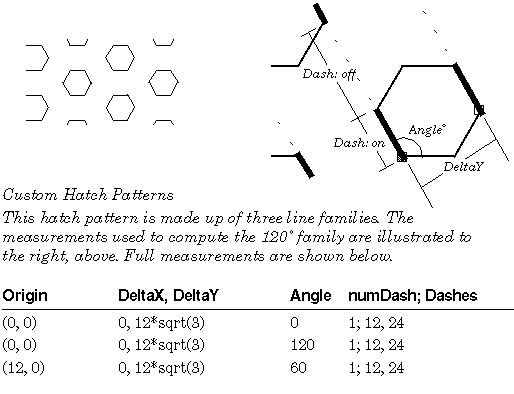
For each line family, the application must supply certain information. Your application will work with the
HatchLine
data type to specify
Custom bitmap patterns are defined in terms of simple bitmaps. To find out the structure of a bitmap, see the struct's documentation.
To use a custom pattern, call
GrSetCustomAreaPattern()
or
GrSetCustomTextPattern()
. Along with the usual information, you must include a pointer to a memory location which marks the beginning of some structures holding the pattern data. The commands and structures are detailed in the reference manual. For an example of some code using a custom hatch pattern, see Hatch Pattern Data.
Code Display 24-2 Hatch Pattern Data
/* This example shows how to implement the pattern illustrated in the figure above. */
	/* ... */
	GrSetPatternCustom(myGState, gp, hexHatchPatt);
	/* ... */
GraphicPattern gp = {PT_CUSTOM_HATCH, 0};
 static HatchPattern 	hexHatchPatt = { 3 };					/* Three HatchLine structures
						 * must follow */
static HatchLine line1 = { 			{MakeWWFixed(0) , MakeWWFixed(0)},			/* Origin */
		 	MakeWWFixed(0),			/* Delta X
						 *  dashes will be in alignment */
			MakeWWFixed(20.7846097),			/* Delta Y
						 *  lines will be 12*sqrt(3)
						 *  apart */
			MakeWWFixed(0),			/* Angle */
			(dword) (CF_SAME<<16),			/* Color
						 *  will use default color */
			1			/* Number of dashes
						 *  one HatchDash pattern
						 *  must follow */
		};
 static HatchDash dash1 = {			{12, 0},			/* On for 12 points */
			{24, 0}};			/* ...and Off for 24 points */
static HatchLine line2 = { 			{MakeWWFixed(0), MakeWWFixed(0)},			/* Origin */
		 	MakeWWFixed(0),			/* Delta X */
			MakeWWFixed(20.7846097),			/* Delta Y*/
			{120,0},			/* Angle */
			(dword) (CF_SAME<<16),			/* Color */
			1			/* Number of dashes */
		};
static HatchDash dash 2 = {			{12, 0},			/* On for 12 points */
			{24, 0}};			/* ...and Off for 24 points */
static HatchLine line3 = { 			{{12,0} , MakeWWFixed(0)},			/* Origin */
						 *  this line family will be at
						 *  a 12 pt. horizontal offset
						 *  from the other two families.
		 	MakeWWFixed(0),			/* Delta X */
			MakeWWFixed(20.7846097),			/* Delta Y*/
			{60,0},			/* Angle */
			(dword) (CF_SAME<<16),			/* Color */
			1			/* Number of dashes */
		};
static HatchDash dash3 = {			{12, 0},			/* On for 12 points */
			{24, 0}};			/* ...and Off for 24 points */
To find out the current area or text pattern, call
GrGetAreaPattern()
or
GrGetTextPattern()
.
GEOS SDK TechDocs|
| 3.1 Color | 3.3 Mix Mode